

Enter a bid
Only users with the Registered Bidder or Authorised User role will be able to bid on the auction.
To bid:
- Choose dashboard in the menu bar at the top of the screen.
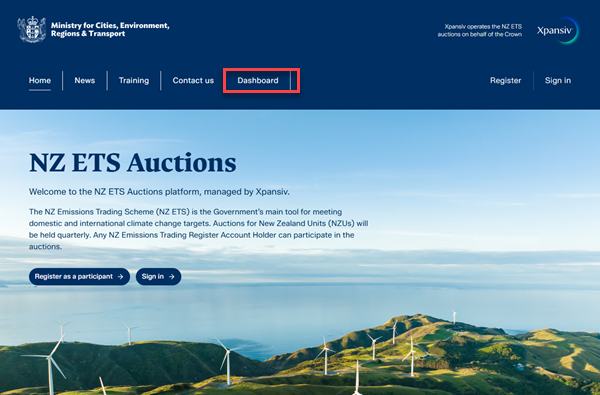
- Sign in with RealMe, and the ETS auction dashboard will be displayed.
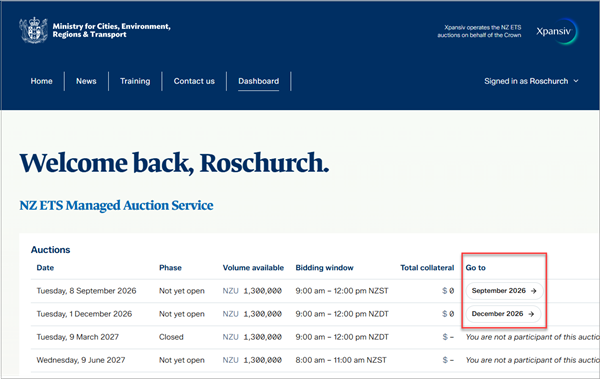
- View the list of upcoming auctions:
- Date
- Phase (e.g. 'Not yet open')
- Volume available
- Bidding window times
- Total collateral available for this auction
- Click the Go to button for an auction to view:
- Auction volume
- Details about the auction
- Your current bids (you will not see other participants’ bids)
Choose the All or Active buttons to filter your bids.
- Your Accounts collateral details
.png)
- If the auction is in Bidding status, you can enter one or more bids.
- Choose the Add bid + button.
- Select the account if you have more than one account.
- Enter the quantity. Quantity must be at least 100 units; increments of 1.
- Enter the price in NZD. Price must be at least the price floor; increments of 0.01.
- Choose the Add button.
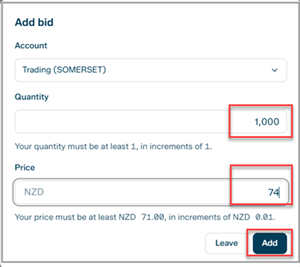
Your bid will be shown in the Bids section of the auction screen. You can enter additional bids if you wish.
Batch submission
You can submit bids by uploading a .csv file.
- In the auction Dashboard choose the Upload button.

The Bulk bid upload screen will be displayed.
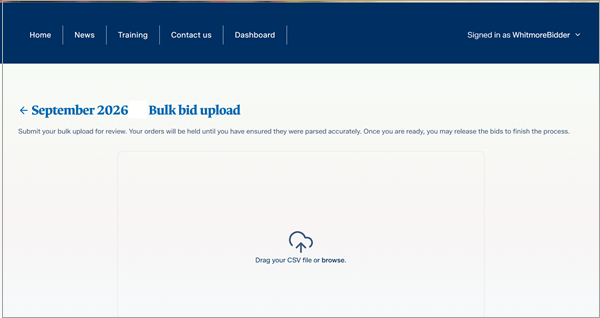
- Drag your file or browse to locate it. It must be a .csv file and follow the below format:

- In the account column, enter your participant's trading name.
- Enter quantity
- Enter price
Cancel or amend a bid
To cancel or change a bid:
- View your bid in the Bids section of the auction screen.
- Choose the Amend or Cancel button for the bid you wish to alter.
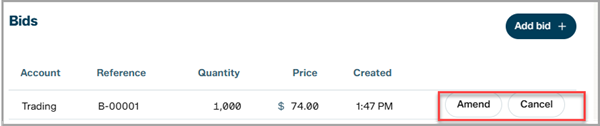
- To amend, enter your revised bid and choose the Add button. Your revised bid will be entered.
- To cancel, choose Cancel, and your bid will be removed from bidding.