

Overview
Organisations or individuals that want to participate in ETS auctions should complete the registration process described here. Once you complete the process, you become an auction participant. (Refer to the Roles and inviting new users guide for more information.)
- Before you become an auction participant, you need to notify the Registrar of the New Zealand Emissions Trading Register (the Register). The Environmental Protection Authority (EPA) operates the register.
- Once you have notified the Registrar, you can become a participant in the auction platform.
Notify the Registrar
You must be set up in the Register as an Account Holder with at least one account. You can do this for yourself or someone else.
- Already have an account in the Register?
If you already have an account, you can complete this notification process using an existing Account Operator or by adding a new one.
- Don't have a Register account?
Follow the process to open a Register account before you proceed with the notification process. Here is more detail How to Open an Account for a New Account Holder in the Emissions Trading Scheme.
Once you have a Register account
View this video to see how to proceed.
These are the steps:
- Sign in to the Register and select the account you want to use for auctions and where you want the auction holdings to be deposited. (You may have more than one holding account.)
- Navigate to Manage Account Operators to start registering.
- To add a user, choose the Add Account Operator button.
Note: You can use an existing Account Operator or add a new one. To designate an existing Account Operator, delete this Account Operator first and then add them back on with the appropriate permissions as described in the next steps.
- Complete the information on the Account Operator and choose Yes for the Auction account holder dropdown.
- Choose the Submissions tab and the Submit button.
- The changes will be finalised when all Account Holders have signed the Account Holder Declaration, which will be linked from this page. Physical or electronic signatures are accepted.
If you have any issues completing this process, please contact the EPA at emissionstrading@epa.govt.nz.
Auction onboarding steps
Information needed
Key information you need to register as an auction participant:
- Your EPA Invite Code (also labeled the EPA Unique ID). This is your confidential code found in the My Details option on your Register homepage.
- Your EPA Register Account Number. This is where purchased units will be transferred to after auctions.
- Bank details and proof of bank account. The name on this bank account must be the registering participant or the registering participant's trading name. Proof must be certified by an entity authorised to do so such as a justice of the peace.
Examples of proof of bank account are:
- bank encoded deposit slip with pre-printed details of your bank account name and number
- copy of a bank account statement
- verification letter or other document of confirmation provided by your bank
- printed version of your bank account details from your online banking
- RealMe account. This account must be the same account you use in the Register.
Note: As part of registering, you will complete the Registration and Declaration Form linked from the website as described below.
Registration Form
To complete the process, fill out the registration form:
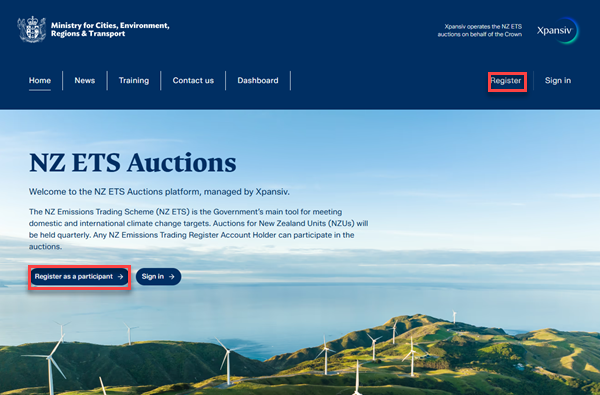
- On the ETS auction website, choose Register as a participant button on the home screen.
Or
Choose Register in the menu bar at the top of the screen.
The registration form will be displayed.
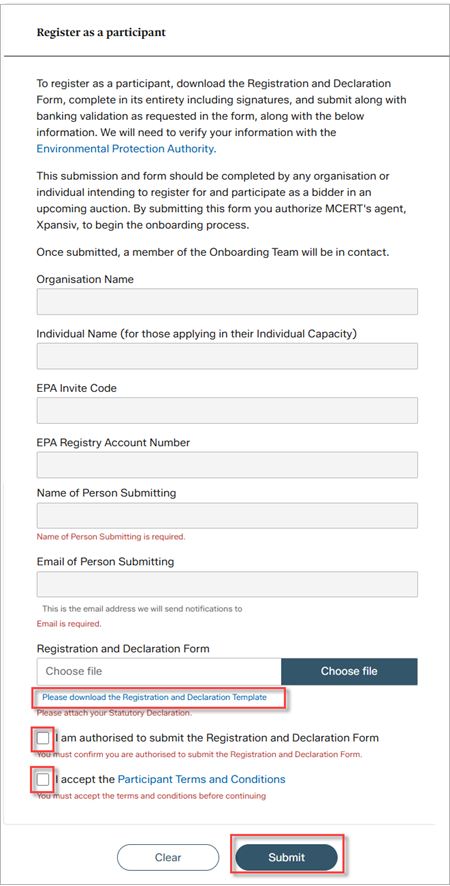
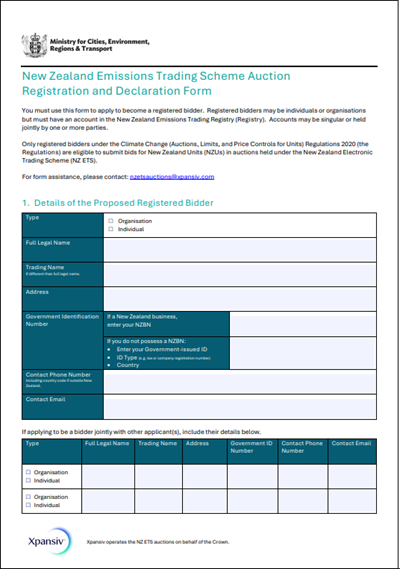
- Choose the Please download the Registration and Declaration Template link. You will need to attach the completed template to the registration form.
The template includes information such as details on the bidder, registry account details, initial auction users, initial proxy bidders, bank account details, and the legal declaration required under New Zealand law.
- Complete the Registration Form fields:
- organisation name
- individual name (for those applying as an individual)
- EPA Invite Code ID (also called the EPA Unique ID)
- EPA Register account number
- name of person submitting
- email of person submitting
- Attach your completed Registration and Statutory Declaration Form.
- Check the box for: I am authorised to submit the Registration and Declaration Form.
- Accept the Participant Terms and Conditions (you can download it to view it).
- Choose the Submit button.
- Once the information has been reviewed and verified, you will receive an invitation link. Click the link in the invitation to log in to RealMe for authentication.
- Once you have logged in with RealMe, you will see the auction dashboard.
Sign in / sign out
After your initial log in, follow these steps to sign in or sign out to view the auction dashboard.
Sign in
- Open the ETS auction website (https://www.etsauctions.govt.nz) and choose the Sign in button or choose Sign in in the menu bar at the top.
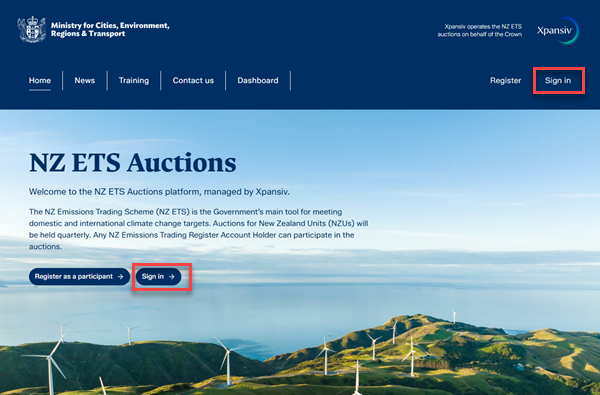
You will see the Sign in screen.
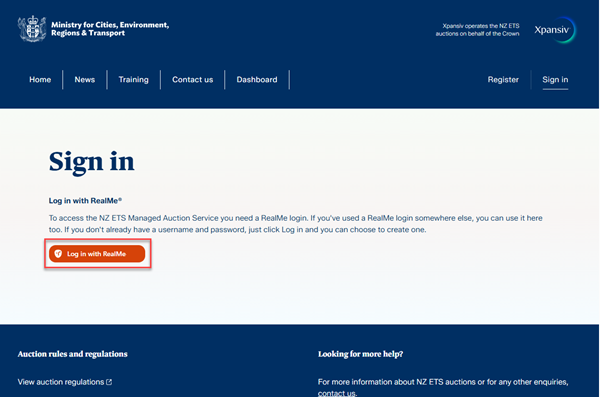
- Choose the Log in with RealMe button.
The RealMe screen will be displayed.
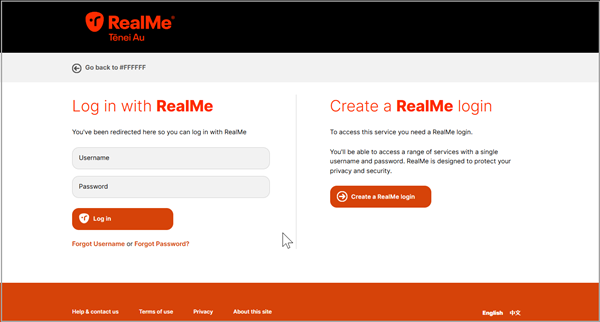
- On the RealMe webpage, enter your RealMe username and password and choose the Log in button. If you don't have a RealMe ID, use the Create a RealMe login button to create one.
The welcome message will be displayed.
Sign out
To sign out: choose the Sign out button from your username on the menu bar.
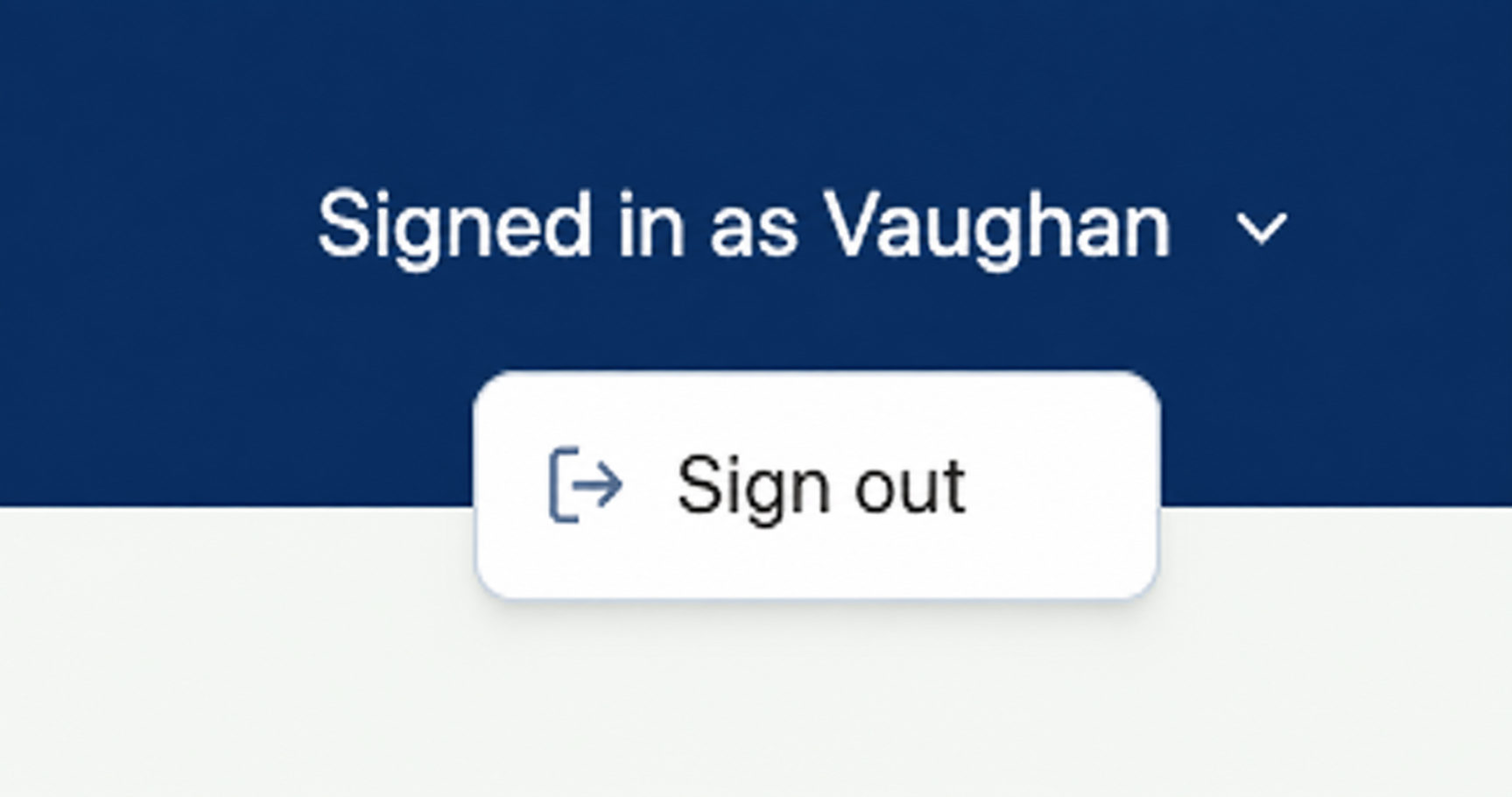
Note: You will automatically be signed out after a specified period of inactivity and will need to sign in again to see your user dashboard again.
Contact us for help
For more information on how to participate in ETS auctions, or any other enquiries, please contact us at NZETSAuctions@xpansiv.com.